Below, Rusted Gods Controls
Input setup for desk work, facility exploration, and terminal focus.
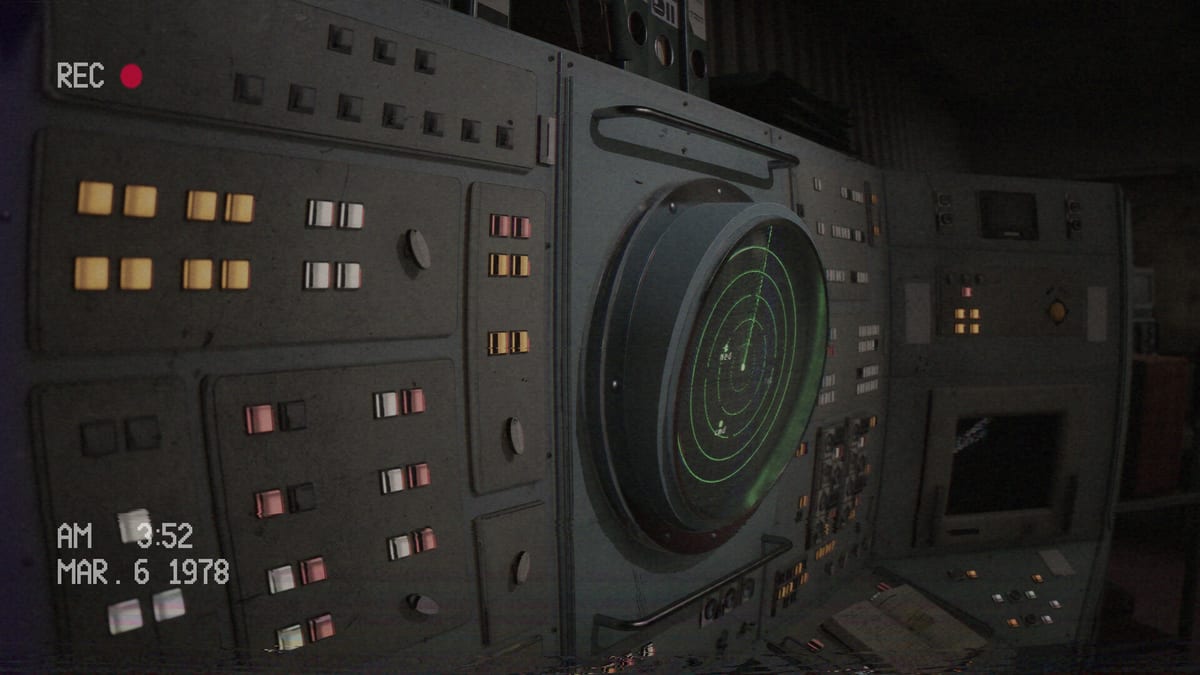
Below, Rusted Gods is a first-person Operator experience with Steam listing full controller support. Exact glyphs can vary by build, so treat this page as a habits guide plus verification checklist rather than a frozen key table. Always confirm bindings in your copy’s options menu after updates—especially around the July 29, 2026 launch.
Input philosophies
Keyboard and mouse
Expect standard first-person locomotion for facility segments and precise cursor or interact keys for terminals. Desk play rewards deliberate clicks: you will tab between radio, radar, status, and media devices. If an on-screen prompt fails, ensure the game window is focused and that interact is not rebound away from your muscle memory.
Controller
Full controller support means you can complete desk and exploration loops on a pad. Prefer a layout that keeps interact and camera comfortable during long static scenes—horror sessions get sweaty when the confirm button is awkward. Test menus, cassette insertion, and radio sweeps before a serious run.
Steam Deck and portable play
Steam Deck Verified (July 20, 2026) confirms default Deck controls work without keyboard or mouse, on-screen prompts show correct Deck controller icons, UI text stays legible at default scale, and the game runs stably on default graphics. Portable Operators still need headphones and the same interact habits—read Steam Deck Verified for launch tips and Day-One Checklist for unlock morning.
Interaction priorities
- Move / look for facility exploration (bathrooms, corridors, peephole moments).
- Interact / confirm for terminals, tapes, doors, and highlighted props.
- Cancel / back for nested terminal UIs if present in your build.
- Pause to adjust audio—critical for this game.
Pair this page with Operator Station so you know what you are pointing at, and with Terminals & Radio for why those interactions matter.
Accessibility-minded tips
Steam lists comfort and accessibility-related categories (camera comfort, color alternatives, playable without timed input, stereo/surround). Use those options if motion or audio mixing fights you. Headphones remain strongly recommended regardless of input method—see Getting Started.
Troubleshooting dead prompts
- Rebind interact and test on a known object (tape deck, door).
- Toggle between keyboard and controller once.
- Verify the soft-lock is not actually a missed voice cue via How to Progress.
- After patches, re-open this page and Patch Notes.
Practice routine
Spend five minutes in the demo purely on inputs: walk the room, insert a cassette, sweep radio, check radar. Then begin the Demo Walkthrough. Keep Cassettes & Lore handy for media interactions and the Operator Checklist for session structure.
Good controls disappear. Bad bindings make the abyss louder than it needs to be.
Practice range before the scare
Spend five calm minutes testing move, look, interact, cancel, and pause. Insert a cassette, sweep a frequency, open a door. If any step fights you, rebind now—not after the peephole. Align practice with Operator Station geography and Terminals & Radio intent.
Controller versus keyboard strengths
Controllers shine during long static desk scenes; keyboards shine when precise UI clicking matters. Either is valid under full controller support. Do not mix conflicting overlays. Soft-lock triage still belongs on How to Progress when the real issue is audio.
Comfort options and audio
Steam lists camera comfort and related accessibility categories. Use them. Headphones remain non-negotiable for dialogue—see Getting Started. Tape interactions are detailed in Cassettes & Lore. Session structure: Operator Checklist.
Launch and patch vigilance
Input bugs appear on day one. Watch Patch Notes and Launch News. Keep store facts on Release & Demo and hardware on System Requirements. Walkthrough support: Demo Walkthrough. Expectation setting: Review. Hubs: Systems, Guides, Tools. Avoid spoiler routes on Endings until ready.
Good controls disappear. Bad bindings make the abyss louder than it needs to be.
Cloud saves and rebinding surprises
Steam Cloud can restore an old binding profile onto a new machine. After any hardware swap, open options and click through interact on a known prop. Document your preferred layout in a text file beside the Operator Checklist. If a patch resets defaults, note it when Patch Notes update. Continue literacy on Operator Station, Terminals & Radio, Cassettes & Lore, Getting Started, How to Progress, Demo Walkthrough, Release & Demo, System Requirements, Review, Launch News, Endings, and hubs Systems, Guides, Tools, Overview, Updates.
Frequently Asked Questions
Quick answers for operators on active Steam shifts.
Does the game require a controller?
No. Full controller support is available, but keyboard and mouse remain valid.
Where do I remap keys?
Use the in-game options / settings menu in your build, then retest interact on a tape deck.
Why do prompts feel unresponsive?
Often a story gate, not an input bug—cross-check [How to Progress](/guides/how-to-progress/).
Are there accessibility options?
Steam lists camera comfort, color alternatives, and related features—inspect the options menu for your version.
Where are Steam Deck control notes?
See [Steam Deck Verified](/overview/steam-deck/) for Verified defaults and portable tips.